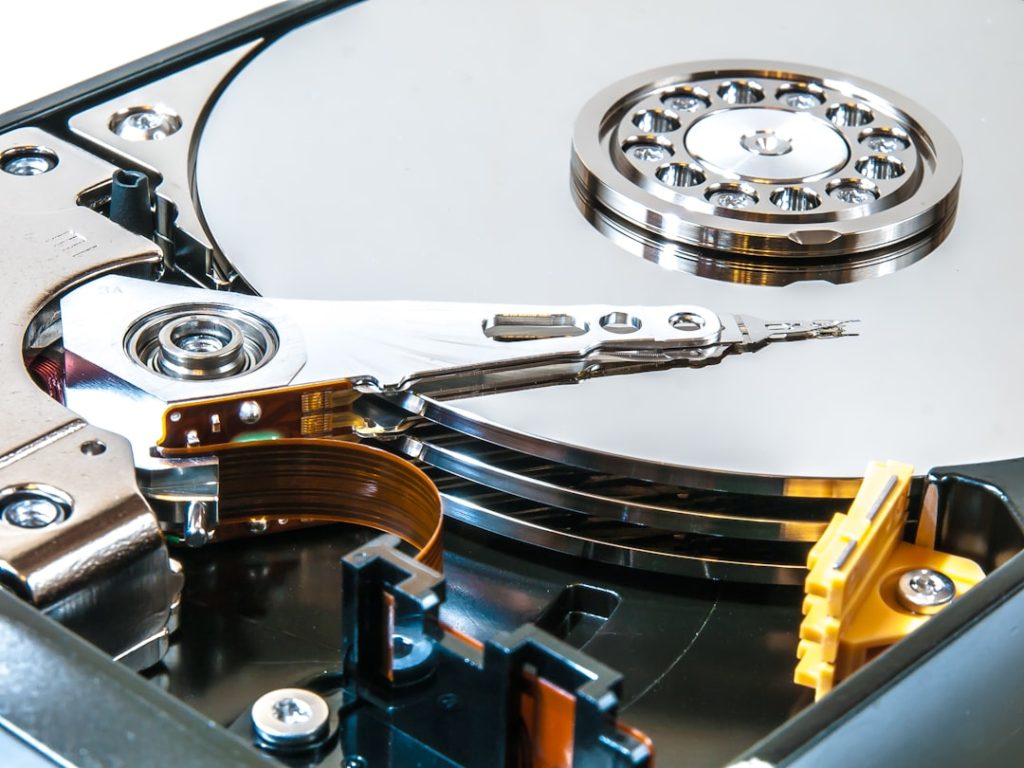
We’ve all been there. That sinking feeling in the pit of our stomach when we realize a crucial file is gone. It might have been a momentary lapse in concentration, a system glitch, or an accidental deletion. Whatever the cause, the result is the same: a void where something valuable once resided. This void, however, doesn’t always have to be permanent. We are here to guide you through the process of understanding and executing deleted file recovery, transforming that empty space back into a treasure trove of your lost data.
When we delete a file on our computer, it doesn’t vanish into thin air instantaneously. Instead, the operating system performs a specific set of actions that make the file appear to be gone. Think of it like this: instead of burning down a house, we’re simply removing its address from the city’s directory. The house is still physically there, but no one knows how to get to it anymore.
How Deletion Works in Our Operating System
Our operating systems, whether it’s Windows, macOS, or Linux, manage data by keeping track of where files are stored on our storage devices, typically hard drives or solid-state drives. This tracking is done through a file allocation table or a similar indexing system. When we “delete” a file, the operating system doesn’t immediately erase the data itself. Instead, it marks the space that the file occupied as “available” or “free.” The pointers in the file allocation table that directed the system to the file’s location are removed. This is a crucial distinction: the data remains, but the pathways to access it are gone.
The Importance of Free Space Management
The concept of free space is fundamental to how our computers operate. When data is marked as free, it becomes available for new data to be written over it. This is where the urgency in deleted file recovery comes from. The longer we wait, the higher the probability that the deleted file’s data will be overwritten by new information. Imagine a library where returned books are placed in a discard bin. The books are still in the bin, but if new books arrive and are placed in the same spot, the old ones will eventually be moved out and potentially discarded or their pages torn.
System Recycle Bin and Temporary Storage
Most operating systems have a “Recycle Bin” (Windows) or “Trash” (macOS) feature. This acts as a temporary holding area for deleted files. When we move a file to the Recycle Bin, it’s not yet truly gone. It’s simply relocated to a designated folder. This provides a vital safety net, allowing us to restore files with a few clicks. However, this bin, like any storage, has a capacity. Once it’s full or explicitly emptied, the files within are then truly marked as available for overwriting, as described earlier. Similarly, some applications may store temporary versions of files, which can sometimes be a source for recovery even if the primary file is lost.
When Data Disappears: Common Causes of File Loss
Data loss can be a frustrating experience, often occurring when we least expect it. Understanding the common culprits behind these disappearances can help us take preventative measures and better approach recovery efforts.
Accidental Deletion and Formatting Mistakes
The most frequent cause of data loss is human error. We might accidentally select the wrong file and press delete, or mistakenly format a partition thinking it’s empty when it contains vital information. These are akin to misplacing your keys; they’re still somewhere, but you need to retrace your steps to find them.
Hardware Failures: The Unpredictable Nature of Drives
Storage devices, like any mechanical or electronic component, are susceptible to failure. Hard drives can develop bad sectors, controllers can malfunction, or entire drives can cease to function. This is like a structural collapse in our house; the damage can be minor or catastrophic, impacting all its contents.
Software Corruptions and System Crashes
Software bugs, unexpected power outages, or full-blown system crashes can lead to data corruption. This means that the file’s structure is compromised, making it unreadable or incomplete. Imagine a book where some pages are torn out or smudged; the story is there, but it’s jumbled and difficult to comprehend.
Malware and Virus Attacks: The Digital Invaders
Malicious software, or malware, can intentionally delete, corrupt, or encrypt our files, rendering them inaccessible. Viruses often act like digital vandals, causing chaos and destruction to our data. This is the most aggressive form of data destruction, where our digital property is deliberately targeted and harmed.
The Fundamentals of Deleted File Recovery

Once we understand that deleted files aren’t truly erased, we can begin to explore the methods for bringing them back from the brink. The core principle revolves around accessing that marked “available” space before it’s overwritten.
How Recovery Software Works: Scanning for Digital Ghosts
Deleted file recovery software operates by bypassing the operating system’s file allocation table and directly scanning the physical sectors of the storage device. It looks for remnants of data that are not currently referenced by the file system. These tools are like forensic investigators, sifting through the debris of deleted information to piece together fragments of the original files. They can often identify files based on their unique digital signatures, even if their original file names and directory structures are lost.
The Role of Disk Imaging for Safe Recovery
A crucial first step in any significant data recovery effort is creating a disk image. A disk image is essentially an exact byte-for-byte copy of the entire storage device, including both used and unused space. This is paramount because the recovery process itself can sometimes involve writing data back to the drive, which could inadvertently overwrite the very files we’re trying to recover. By working on a copy, we create a safe sandbox, protecting the original drive from any further modification. It’s like taking a high-resolution photograph of a fragile artifact before attempting any restoration work.
File System Structures and Data Remnants
Different file systems (e.g., NTFS for Windows, APFS for macOS, ext4 for Linux) have distinct ways of organizing data. Recovery software is designed to understand these structures. Even when a file is deleted, its data might be fragmented across multiple sectors. The software attempts to reassemble these fragments, aligning them in the correct order to reconstruct the file. Sometimes, only partial recovery is possible if portions of the data have been overwritten.
Steps to Performing Successful Deleted File Recovery

Embarking on the path of file recovery requires a methodical approach. Following these steps will significantly increase our chances of success and minimize further data loss.
Immediate Action: Stop Using the Drive
The single most important step after realizing a file is lost is to immediately stop using the affected storage device. This means ceasing all file operations, including saving new documents, installing software, or even browsing the web, as these activities can write temporary files to the drive. The less activity on the drive, the greater the likelihood that the deleted data remains intact and uncorrupted. Imagine a wound; the best course of action is to stop the bleeding immediately.
Choosing the Right Recovery Software
Numerous data recovery software options are available, ranging from free basic tools to advanced commercial solutions. The choice depends on the severity of the data loss, the type of file system, and our technical expertise. For simple accidental deletions, freeware might suffice. For more complex scenarios, such as those involving physical drive damage or severe corruption, professional-grade software or even a data recovery service might be necessary. It’s wise to research and read reviews before committing to any particular software.
The Recovery Process: A Step-by-Step Guide
Once we have selected and installed our recovery software (ideally on a different drive to avoid overwriting), the general process involves:
Initiating a Scan
We’ll typically select the drive or partition where the file was lost and initiate a scan. Many programs offer different scan types, such as a quick scan (faster but less thorough) and a deep scan (more time-consuming but capable of finding more deleted files).
Previewing Recoverable Files
After the scan completes, the software will present a list of recoverable files. A crucial feature to look for is the ability to preview files before attempting recovery. This allows us to verify if the file is indeed the one we’re looking for and if it’s intact. A preview function is like looking at a patient’s X-ray before surgery; it confirms the problem and the potential solution.
Selecting and Recovering Files
We then select the files we wish to recover. It is absolutely critical to save the recovered files to a different storage device than the one they were recovered from. Saving them back to the original drive could overwrite other deleted files, negating our recovery efforts.
When DIY Recovery Isn’t Enough: Professional Data Recovery Services
| Metric | Description | Typical Value/Range | Notes |
|---|---|---|---|
| Recovery Success Rate | Percentage of deleted files successfully recovered | 60% – 95% | Depends on file system, time since deletion, and recovery tool |
| Average Recovery Time | Time taken to recover deleted files | 5 minutes – 2 hours | Varies with data size and hardware speed |
| Supported File Systems | File systems compatible with recovery tools | NTFS, FAT32, exFAT, HFS+, APFS, ext3, ext4 | Most tools support multiple file systems |
| File Types Recoverable | Types of files that can be recovered | Documents, Images, Videos, Audio, Archives | Depends on tool and file signature database |
| Data Overwrite Risk | Likelihood that deleted data has been overwritten | Low to High | Higher risk with continued disk usage after deletion |
| Recovery Tool Compatibility | Operating systems supported by recovery software | Windows, macOS, Linux | Some tools are platform-specific |
| File Fragmentation Impact | Effect of file fragmentation on recovery success | Moderate to High | Highly fragmented files are harder to recover intact |
| Cost of Recovery | Typical cost range for professional recovery services | Varies widely | Depends on data size, complexity, and urgency |
While the advancements in data recovery software have empowered us to retrieve many lost files ourselves, there are situations where professional intervention is not just recommended, but essential. These are the cases where the data loss is so severe or complex that DIY attempts could do more harm than good.
Recognizing the Limits of Software
Software is powerful, but it has limitations. It cannot overcome a physically damaged hard drive with severely corrupted platters or a failed read/write head. If our drive is making clicking or grinding noises, or if it’s not recognized by the computer at all, then software alone will likely be insufficient. These are the symptoms of a critically ill patient requiring specialized medical attention.
When to Consider Professional Help
Several scenarios warrant seeking a professional data recovery service:
Critical Data Loss
If the lost data is irreplaceable and has significant business, personal, or legal implications, the cost of a professional service is often a worthwhile investment. We wouldn’t hesitate to call an expert plumber for a major pipe burst; the same logic applies to our most valuable digital assets.
Physical Drive Damage
As mentioned, if the storage device is physically damaged (e.g., dropped, water-damaged, exhibiting unusual noises), attempting recovery with software can cause further irreversible damage. Professionals have specialized cleanroom environments and tools to handle such delicate situations.
Complex Logical Failures
Sometimes, logical failures can be so intricate that even advanced software struggles. Professionals have the expertise and proprietary tools to tackle these complex scenarios, often achieving higher success rates. They are the surgeons of the data recovery world, capable of performing intricate operations.
The Professional Recovery Process: A Glimpse Behind the Curtain
Professional data recovery services typically involve a more involved process:
Initial Diagnosis and Evaluation
Upon receiving the damaged media, the service will perform a thorough diagnosis to determine the cause and extent of the data loss. They will provide an estimate of the recovery success rate and the associated costs.
Cleanroom Environment and Specialized Tools
For physically damaged drives, the recovery takes place in a cleanroom environment to prevent dust particles from contaminating the delicate components of the drive. Specialized tools are used to manipulate and repair these components.
Data Reconstruction
Similar to software, professionals reconstruct the data. However, they possess advanced techniques and algorithms for dealing with severely fragmented or corrupted data that software cannot handle.
Data Verification and Delivery
Once the data is recovered, it is thoroughly verified to ensure its integrity. The recovered data is then typically delivered on a new storage medium.
Prevention: The Best Defense Against Data Loss
While we’ve covered how to recover lost data, the most effective strategy is to prevent it from happening in the first place. Think of prevention as building a strong, secure vault for our treasures.
The Imperative of Regular Backups
This is the golden rule of data management. Regularly backing up our important files to an external hard drive, a cloud storage service, or a Network Attached Storage (NAS) device is paramount. A backup is like having a spare key to our house; if the original is lost, we have a readily available replacement.
What Constitutes a Good Backup Strategy?
A good backup strategy involves:
- Regularity: Backups should be performed frequently, ideally daily or at least weekly, depending on how often our data changes.
- Redundancy: Having multiple backup locations (e.g., one local and one cloud) provides an extra layer of security.
- Testing: Periodically testing our backups to ensure they are restorable is crucial. A backup that cannot be restored is essentially useless.
Cloud Storage and Its Benefits
Cloud storage services offer a convenient and often automated way to back up our data. Files are stored on remote servers, meaning they are protected from local disasters like fires or theft. Services like Google Drive, Dropbox, and OneDrive can sync files automatically, offering a seamless backup experience.
Creating Disk Images as a Proactive Measure
Beyond simple file backups, creating full disk images periodically can be a lifesaver. This creates a snapshot of our entire system, which can be used to restore our operating system and all our applications and data in the event of a major system failure or ransomware attack.
Practicing Safe Computing Habits
Being mindful of our digital environment is crucial. This includes:
Being Wary of Suspicious Links and Downloads
Phishing attempts and malicious downloads are common vectors for malware. Always exercise caution and verify the source of any email, link, or download before interacting with it.
Using Antivirus and Antimalware Software
Keeping our security software up-to-date and performing regular scans can help detect and remove threats before they can cause damage.
Understanding File System Health Checks
Regularly running disk health checks (e.g., chkdsk in Windows) can help identify and potentially repair minor file system errors before they escalate.
In conclusion, the specter of deleted file loss is a reality we all face. However, by understanding the underlying mechanisms, employing the right recovery techniques, and most importantly, prioritizing prevention through robust backup strategies, we can navigate these challenges with confidence. The digital world, while complex, offers us pathways to reclaim what we thought was lost, turning moments of panic into triumphs of restoration.