The digital realm, a vast ocean of our memories, creations, and vital information, often resides on external hard drives. These portable repositories have become indispensable tools, acting as treasure chests for our digital lives, from cherished photographs to crucial business documents. Yet, like any physical object, they are not immune to the ravages of time, accidents, or technological failures. When the unthinkable happens, and our external hard drive turns into a silent, inaccessible vault, panic can set in. This is where the science and art of external hard drive recovery come into play. We are here to guide you through this often-daunting process, offering a structured approach to retrieving what might seem lost forever.
Our aim is to equip you with the knowledge and understanding necessary to navigate the complexities of data loss and recovery. This guide will illuminate the common causes of data loss from external hard drives, outline proactive measures to prevent such disasters, and detail the various methods available for data retrieval, from simple DIY fixes to professional intervention. We will demystify the technical jargon and provide clear, actionable steps, empowering you to make informed decisions when faced with the unsettling silence of a malfunctioning drive.
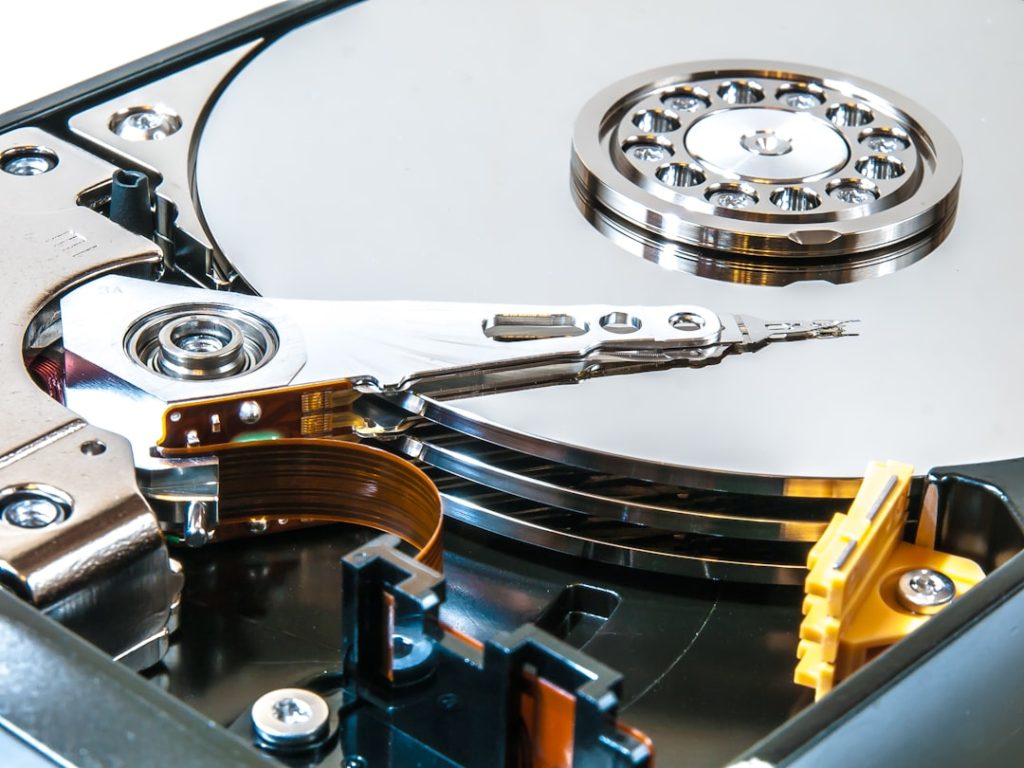
External hard drives, while convenient, are susceptible to a variety of issues that can render them inaccessible. Understanding these potential pitfalls is the first step in successfully recovering your data. These devices are essentially miniature versions of the internal hard drives found in our computers, containing spinning platters coated with magnetic material and read/write heads that dance across their surface. When any component within this intricate ecosystem falters, data can become unreachable.
Physical Damage: The Visible Scars
Physical damage is often the most obvious culprit behind data loss. This can range from accidental drops and impacts to water damage or exposure to extreme temperatures.
Dropped Drives: The Silent Tumblers
A dropped external hard drive can be like a delicate watch falling to the floor. The shock can cause the read/write heads to crash onto the platters, scratching the magnetic surface and making sectors of data unreadable. In severe cases, the internal components might be physically dislodged or broken.
Liquid Exposure: The Corrosive Tide
Water, coffee, or any other liquid introduced to an external hard drive can wreak havoc. While the drive might still power on initially after a spill, the moisture can lead to corrosion of sensitive electronic components over time, causing short circuits and data corruption.
Environmental Factors: The Unseen Adversaries
Heat, dust, and humidity can also contribute to the gradual degradation of an external hard drive. Prolonged exposure to high temperatures can cause components to expand and contract, leading to mechanical stress. Dust ingress can interfere with the delicate movement of the read/write heads.
Logical Failures: The Invisible Corruption
Logical failures are less dramatic but equally effective in making data inaccessible. These issues stem from problems with the drive’s file system, software errors, or accidental deletions. The hardware itself might be perfectly functional, but the organizational structure that allows our operating system to find and read data is compromised.
File System Corruption: The Disorganized Library
The file system is the catalog of our digital library. When it becomes corrupted, the drive’s operating system can no longer understand where files are located. This can happen due to abrupt disconnections, power surges, or software glitches.
Accidental Deletion and Formatting: The Unintentional Erasure
Mistakenly deleting files or formatting a drive can feel like pressing the “delete all” button on your life’s work. While the data may still physically exist on the drive’s platters, it is no longer referenced by the file system.
Virus and Malware Attacks: The Digital Vandals
Malicious software can encrypt, corrupt, or delete files, rendering them unusable. These digital invaders can act like vandals, defacing our precious data until it’s unrecognizable.
Electronic Failures: The Frayed Wires
The electronic components of an external hard drive can also fail. This includes the printed circuit board (PCB), which acts as the drive’s brain, and the controller chip, which manages data flow.
PCB Damage: The Erroneous Circuitry
Damage to the PCB, often caused by power surges or electrical faults, can prevent the drive from powering on or communicating with the computer.
Controller Chip Malfunction: The Communication Breakdown
The controller chip is responsible for translating commands from the computer to the drive. If it malfunctions, communication ceases, and the drive becomes a silent enigma.
Preventive Measures: Building Digital Defenses
Before we delve into recovery, it’s crucial to understand that the best strategy is always prevention. Implementing good data management practices can significantly reduce the likelihood of facing data loss from external hard drives. Think of these measures as building a sturdy fort around your digital treasures.
Regular Backups: The Essential Life Raft
The most straightforward and effective way to safeguard your data is by regularly backing it up. This creates redundant copies of your important files, acting as a safety net should your primary storage fail.
The 3-2-1 Backup Strategy: A Robust Framework
We advocate for the “3-2-1” backup strategy. This means having at least three copies of your data, stored on two different types of media, with at least one copy being offsite. This multilayered approach ensures that even if multiple disasters strike, your data will remain accessible.
Cloud Storage: The Remote Sanctuary
Cloud storage services offer a convenient way to store backups remotely. This shields your data from local disasters like fires or floods. Automatic synchronization ensures your backups are always up-to-date.
Secondary External Drives: The Backup within a Backup
Having a second external hard drive solely dedicated to backups provides an additional layer of protection. Rotating these backup drives can also offer variety and redundancy.
Prudent Handling and Usage: The Gentle Touch
External hard drives are not indestructible. Treating them with care during use and transit is paramount.
Safe Ejection: The Respectful Farewell
Always use the “Safely Remove Hardware” or “Eject” option before physically disconnecting an external hard drive. This ensures that all data being written has been finalized, preventing file system corruption. Imagine pulling the plug on a running washing machine – chaos is likely to ensue.
Secure Storage: The Shielded Haven
When not in use, store external hard drives in a protective case or a safe, dry environment, away from extreme temperatures, dust, and magnetic fields. This shields them from physical damage and environmental hazards.
Avoiding Power Surges: The Protective Barrier
Using a surge protector for your computer and connected peripherals, including external hard drives, can prevent damage from sudden voltage spikes caused by lightning or power grid fluctuations.
Drive Health Monitoring: The Early Warning System
Proactive monitoring of your drive’s health can sometimes provide early indications of impending failure, allowing you to act before disaster strikes.
SMART Status: The Drive’s Vital Signs
Many operating systems and disk utility tools can access the Self-Monitoring, Analysis and Reporting Technology (SMART) data of a hard drive. This provides key metrics about the drive’s performance and potential issues. Paying attention to SMART warnings can be like noticing a car’s engine light before a breakdown.
Disk Utility Tools: The Diagnostic Check
Regularly running disk utility programs can help identify and sometimes fix minor file system errors. These tools can perform checks on the drive’s integrity and report any anomalies.
Data Recovery Methods: The Retrieval Toolkit

When data loss occurs, a range of recovery methods can be employed, varying in complexity and success rates. The approach we take depends heavily on the nature of the failure.
Software-Based Recovery: The Digital Excavator
For logical failures, software-based recovery tools are often the first line of defense. These programs scan the drive for deleted files or corrupted data structures and attempt to reconstruct them.
Scanning for Deleted Files: The Ghost Hunters
These tools work by searching for file signatures and remnants of deleted files that still exist on the drive. They essentially try to reassemble the puzzle pieces that the operating system has discarded.
Repairing File System Errors: The Librarian’s Order
Certain software can attempt to repair corrupted file system structures, making previously inaccessible data visible again. This is like reorganizing a library that has fallen into disarray.
Imaging the Drive: The Forensic Snapshot
In situations where the drive is showing signs of imminent failure but is still partially accessible, creating a sector-by-sector image of the drive is a crucial first step. This creates an exact replica of the drive’s contents, allowing recovery attempts to be made on the image rather than the potentially failing original drive. This is akin to taking a detailed photograph of a delicate artifact before attempting any restoration.
Hardware-Based Recovery: The Specialist’s Touch
When physical damage or severe electronic failures occur, hardware-based recovery, often requiring specialized equipment and expertise, becomes necessary.
Clean Room Environment: The Sterile Opera House
For drives with physical damage to the platters or read/write heads, recovery must take place in a Class 100 clean room. This sterile environment prevents even microscopic dust particles from contaminating the delicate internal components during disassembly and repair. Imagine performing microsurgery in a dust-free operating theater.
Component Replacement: The Organ Transplant
In cases of mechanical failure, damaged components like read/write heads or the motor assembly may need to be replaced. This requires donor parts from compatible drives and highly specialized tools.
Platter Swapping: The Delicate Transfer
If the platters themselves are damaged, specialized techniques might be employed to transfer them to a working donor drive. This is an extremely delicate procedure requiring immense precision.
Professional Data Recovery Services: The Cavalry Arrives
When DIY attempts fail or the situation is particularly complex, engaging professional data recovery services is often the most reliable path to retrieving lost data. These services possess the advanced tools, expertise, and clean room facilities to tackle even the most challenging cases.
Initial Assessment and Diagnosis: The Sherlock Holmes Investigation
Reputable data recovery labs will offer an initial assessment of your drive to determine the nature of the failure and the likelihood of successful recovery. They will provide a transparent report and a quote for their services.
The Recovery Process: Expertise in Action
Once you authorize the service, their technicians will use specialized equipment and techniques to recover your data. This often involves component replacement, platter manipulation, or advanced software algorithms.
Data Transfer and Security: The Secure Handover
Upon successful recovery, your data will be returned to you on a new storage medium, often an external hard drive or a secure cloud upload. Reputable services adhere to strict data privacy and security protocols.
Common Recovery Scenarios and Solutions: Troubleshooting Your Drive

Let’s examine some common scenarios you might encounter and the typical approaches to resolving them. Think of these as case studies in digital archaeology.
Scenario 1: The Drive is Not Recognized by the Computer
This is a common and perplexing issue. The computer simply doesn’t “see” the external hard drive when it’s plugged in.
Possible Causes:
- Loose or faulty USB cable: The connection might be intermittent or the cable itself could be damaged.
- Corrupted USB port: The port on your computer might be malfunctioning.
- Driver issues: The operating system might not have the correct drivers installed for the external drive.
- Power issues: The drive may not be receiving sufficient power, especially if it’s a bus-powered drive connected to a low-power USB port.
- Drive electronics failure: The PCB or controller chip might have failed.
Potential Solutions:
- Try a different USB cable: A simple swap can often resolve this.
- Try a different USB port: Test all available ports on your computer.
- Try a different computer: This helps isolate whether the issue is with the drive or your computer.
- Connect directly to a wall outlet (if applicable): Ensure the drive’s power adapter is securely plugged in and functioning.
- Check Device Manager (Windows) or System Information (macOS): Look for any unrecognized devices or errors related to the external drive. Update or reinstall drivers if necessary.
- If it’s a 3.5-inch drive requiring external power, ensure the power adapter is connected and turned on.
Scenario 2: The Drive Makes Clicking or Grinding Noises
These unsettling sounds are often indicative of severe mechanical failure within the drive.
Possible Causes:
- Head crash: The read/write heads have physically collided with the platters, damaging the magnetic surface.
- Motor failure: The spindle motor that spins the platters might be malfunctioning.
Potential Solutions:
- Immediately power down the drive: Continued operation can cause further damage and make recovery more difficult.
- DO NOT attempt to open the drive: This will void warranties and almost certainly lead to further contamination and data loss if not done in a clean room.
- Contact a professional data recovery service: This scenario almost always requires professional intervention in a clean room environment. The clicking sound is the drive’s cry for help.
Scenario 3: The Drive Appears, But Files Are Inaccessible or Corrupted
The drive is recognized, but you can’t open files, or they appear garbled.
Possible Causes:
- File system corruption: The organizational structure of the data has been damaged.
- Logical errors: Bad sectors on the drive are preventing file access.
- Virus or malware infection: Malicious software has corrupted or encrypted your files.
Potential Solutions:
- Use data recovery software: Tools like Recuva, EaseUS Data Recovery Wizard, or Disk Drill can scan for deleted or corrupted files.
- Run disk checking utilities: Windows’
chkdskcommand or macOS’s Disk Utility can attempt to repair file system errors. - Scan for viruses and malware: Ensure your antivirus software is up-to-date and run a full system scan.
- If the aforementioned steps do not work, or if you suspect hard drive failure, professional recovery services may be necessary.
When to Seek Professional Help: Recognizing the Limits of DIY
| Metric | Description | Typical Value / Range | Notes |
|---|---|---|---|
| Recovery Success Rate | Percentage of data successfully recovered from external hard drives | 70% – 95% | Varies based on damage type and recovery method |
| Average Recovery Time | Time taken to complete data recovery process | 24 – 72 hours | Depends on drive size and damage severity |
| Common Causes of Failure | Typical reasons for external hard drive data loss | Physical damage, logical corruption, firmware issues | Physical damage often requires professional recovery |
| Data Recovery Software Compatibility | Operating systems supported by popular recovery tools | Windows, macOS, Linux | Some tools are OS-specific |
| File System Support | File systems that can be recovered from external drives | NTFS, FAT32, exFAT, HFS+, APFS | Recovery success depends on file system integrity |
| Cost Range for Professional Recovery | Typical cost range for professional external hard drive recovery | 100 – 1500 | Higher cost for severe physical damage |
| Data Overwritten Risk | Risk of data being overwritten during recovery attempts | Low if recovery is done immediately | Important to stop using drive after data loss |
While many data loss situations can be addressed with DIY methods, there are critical junctures where professional intervention is not just recommended, but essential. Pushing beyond your technical comfort zone can sometimes be akin to a patient attempting to perform their own surgery – the risks far outweigh the potential benefits.
The Silence of the Drive: No Power, No Spin
If your external hard drive shows absolutely no signs of life – it doesn’t spin, no lights illuminate, and it’s not detected by any computer – it strongly suggests a severe internal component failure. This could be a dead PCB or a failed motor. Attempting to fix this without specialized knowledge and equipment is futile and could cause irreversible damage.
The Unsettling Symphony: Clicking, Grinding, or Scraping Noises
As previously mentioned, these acoustic warnings are a loud siren call for professional help. They indicate a physical problem with the drive’s internal mechanics, such as a head crash. Continued operation can quickly turn a recoverable situation into an unrecoverable one as the platters are further damaged.
The Encrypted Vault: Ransomware Attacks
If your files have been encrypted by ransomware and you are being asked for payment to decrypt them, it is almost always advisable to avoid paying the ransom. The chances of receiving the decryption key are slim, and you may be incentivized to pay from your position of vulnerability. Data recovery specialists can sometimes help by finding unencrypted backups or, in rare cases, by utilizing exploits if available. However, a direct decryption of ransomware-locked data is often impossible without the correct key.
The Critical Nature of the Data: When Everything is on the Line
If the data on your external hard drive is of immense personal or business importance – think irreplaceable family heirlooms captured digitally, critical financial records, or unique intellectual property – the potential loss can be devastating. In such high-stakes situations, the cost of professional data recovery is often a small price to pay compared to the complete and permanent loss of that data. The peace of mind that comes from entrusting your data to experts can be invaluable.
The Complexity of the Failure: When DIY Tools Fall Short
You’ve tried the readily available software, swapped cables, and explored all the common troubleshooting steps, but the drive remains stubbornly inaccessible. This indicates a more complex issue, perhaps involving multiple failure points or a novel type of corruption. Professional data recovery labs have access to proprietary software, advanced hardware tools, and a vast knowledge base honed by years of experience with a myriad of drive failures. They can often find solutions where standard tools fail, much like a master locksmith can open a complex lock that baffles an amateur.
When you reach these points, consider your external hard drive not just as a storage device, but as a complex piece of machinery that has encountered a critical medical emergency. Just as you wouldn’t attempt brain surgery on yourself, attempting complex data recovery without the right expertise and tools can lead to further complications. Recognizing your limitations and leveraging the expertise of professionals is a sign of wisdom, not weakness, in the often-turbulent waters of data loss.
The journey of external hard drive recovery can be a challenging one, but by understanding the causes of failure, implementing robust preventive measures, and knowing when to seek expert assistance, we can significantly improve our chances of retrieving our lost digital treasures. The digital world is a vast and intricate landscape, and while we strive to navigate it safely, the occasional shipwreck is an unfortunate reality. However, with the right tools and knowledge, we can often mount successful salvage operations.