We’ve all been there – the cold dread that washes over us when a hard drive fails. It’s not just a piece of hardware; it’s a repository of our lives, our work, our memories. Today, we embark on a comprehensive journey through the world of hard drive recovery, a critical skill in our increasingly digital existence. We aim to equip you with the knowledge to understand, prevent, and, if necessary, recover data from a compromised drive.
Before we can effectively address hard drive recovery, we must first comprehend the nature of hard drive failures. These events are not always sudden and catastrophic; often, they present with preceding symptoms, acting as digital smoke signals.
Types of Hard Drive Failure
We classify hard drive failures into several primary categories, each with its own underlying causes and implications for recovery.
Logical Failure
Logical failures occur when the hard drive hardware remains physically intact and fully functional, but the data stored on it becomes inaccessible or corrupted due to software issues. Imagine a library where all the books are present, but the cataloguing system has gone awry, making it impossible to find a specific volume.
- File System Corruption: This is a common logical failure where the organizational structure that allows the operating system to locate and access files becomes damaged. This can manifest as an inability to mount the drive, “RAW” file system errors, or inexplicable file and folder disappearance. We see this often after improper shutdowns, power surges, or software glitches.
- Accidental Deletion or Formatting: Human error plays a significant role in data loss. We sometimes mistakenly delete crucial files or format a drive we didn’t intend to. While the data isn’t immediately gone, the operating system marks the space as available, making recovery time-sensitive.
- Operating System Corruption: A corrupted operating system can prevent access to the hard drive, even if the data itself is sound. This often requires OS reinstallation, but data on other partitions or external drives may remain accessible.
- Virus or Malware Infection: Malicious software can damage file systems, encrypt data (ransomware), or delete files outright, leading to significant logical data loss.
Mechanical Failure
Mechanical failures are hardware-related issues, where physical components of the hard drive are no longer functioning correctly. These are often more complex and costly to recover from, as they typically require specialized equipment and expertise. Consider trying to read a book when the pages are torn or the binding has come undone.
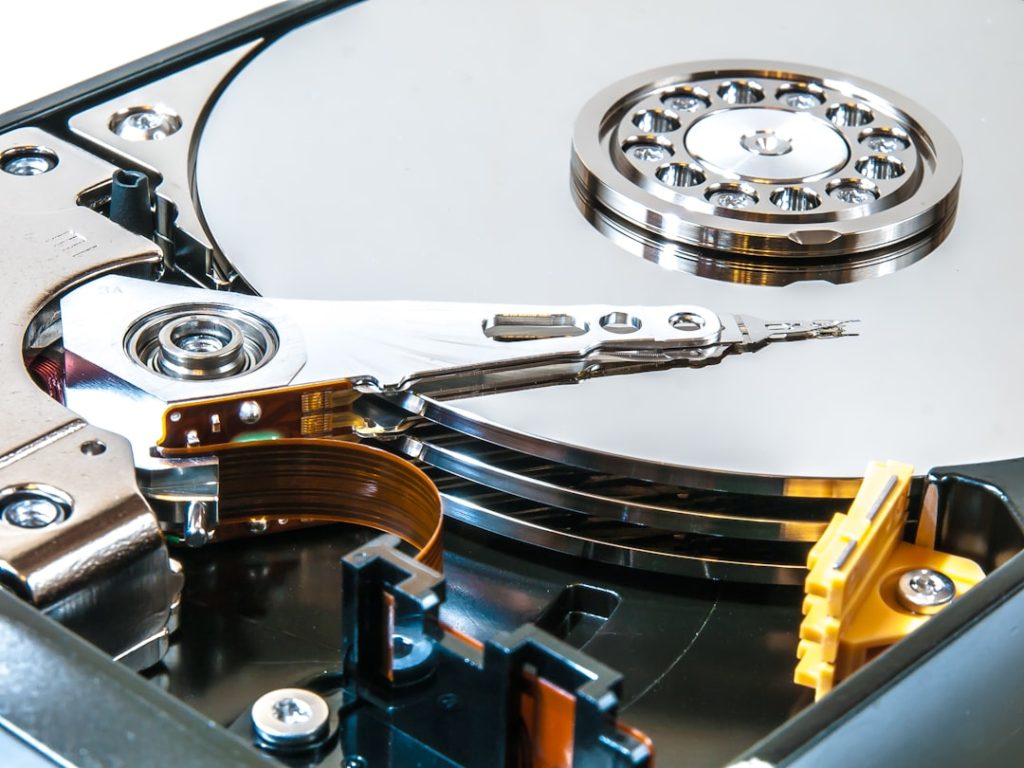
- Head Crash: This is one of the most severe mechanical failures, where the read/write heads (which float nanometers above the platters) come into contact with the magnetic surfaces, causing scratching and data destruction. This often produces a distinctive “clicking” or “grinding” sound.
- Spindle Motor Failure: The spindle motor is responsible for spinning the platters at a constant, high speed. If it fails, the platters won’t spin, and the drive will remain silent or emit a faint hum without any other activity.
- Controller Board (PCB) Failure: The Printed Circuit Board (PCB) manages the drive’s operations. A faulty PCB can prevent the drive from being recognized by the computer or power up at all. We must be cautious, as simply swapping PCBs is rarely effective due to firmware matching requirements.
- Platter Damage: The platters are the magnetic disks where data is stored. Physical damage, such as scratches or demagnetization, can render data irretrievable. This often occurs in conjunction with head crashes or severe physical impacts.
Firmware Failure
Firmware is the low-level software embedded in the hard drive that controls its basic operations. Firmware failures can manifest as the drive not being recognized by the BIOS/UEFI, incorrect capacity reporting, or the drive getting stuck in a “busy” state. It’s like the operating manual for a complex machine getting corrupted – the machine itself is fine, but it doesn’t know how to operate.
- Corrupted Service Area Modules: The service area on the platters contains critical firmware modules. Damage to this area can cripple the drive’s functionality.
- Controller Firmware Issues: Problems with the firmware on the PCB can also prevent proper operation.
Initial Steps and Data Preservation
When we suspect a hard drive failure, our immediate actions are crucial. The goal here is not recovery, but preservation – preventing further damage and maximizing the chances of successful data retrieval later. Think of it as stabilizing a patient before surgery.
Cease All Operations
This is perhaps the most important rule. If your hard drive is showing signs of failure, immediately cease all operations on it.
- Shut Down the Computer: If the drive is internal, power down your computer safely. If it’s an external drive, simply disconnect it. Continuing to use a failing drive, especially with mechanical issues, can exacerbate the damage and make recovery impossible. Every read and write operation increases the risk of further data corruption or physical damage.
- Do Not Attempt to Repair with Software: Resist the urge to run disk repair utilities like
chkdskorfsckon a failing drive. These tools can sometimes write over valuable data, especially in cases of logical corruption, making professional recovery more difficult or impossible.
Assess the Situation (Without Intervening Too Much)
We need to gather information without making things worse. This helps us understand the nature of the problem and decide on the next steps.
- Listen for Unusual Sounds: Pay close attention to any clicking, grinding, whirring, or buzzing noises coming from the drive. These are strong indicators of mechanical failure.
- Check BIOS/UEFI Recognition: Does the computer’s BIOS or UEFI detect the drive? If not, it could point to a severe mechanical or PCB issue.
- Observe Operating System Behavior: Does the OS hang or refuse to boot? Are files or folders inaccessible? These are classic signs of logical or firmware issues.
Prepare for Potential Next Steps
Having a plan, even a preliminary one, can save time and reduce stress.
- Gather Drive Information: Note down the make, model, and serial number of the drive. This information is vital if you need to seek professional help.
- Consider a Professional Data Recovery Service: For mechanical failures, firmware issues, or if the data is highly critical, contacting a reputable data recovery service is often the best course of action. They possess specialized tools, cleanroom environments, and expertise that we, as individuals, rarely have.
DIY Data Recovery: When and How
While professional services are essential for complex cases, we can often perform successful data recovery ourselves under specific circumstances, mainly involving logical failures. This is akin to performing first aid – effective for minor injuries, but not for major trauma.
Prerequisites for DIY Recovery
Before we even begin, we must ensure we have the right tools and environment.
- A “Healthy” Host Computer: We’ll need a different, fully functional computer to connect the failing drive to. Do not attempt recovery directly on the compromised system if it’s the primary drive.
- Hard Drive Enclosure or Adapter: An external enclosure or a USB-to-SATA/IDE adapter allows us to connect the failing drive to our host computer without opening the case.
- Sufficient Storage Space: We’ll need ample free space on another healthy drive to store the recovered data. Never attempt to recover data onto the same failing drive.
- Data Recovery Software: Specialized software is our primary tool for logical recovery.
Choosing the Right Software
The market is flooded with data recovery software. We need to select one based on the nature of our data loss and our technical comfort level.
- Recuva (Free/Paid): Excellent for recovering accidentally deleted files from healthy or lightly corrupted drives. User-friendly interface.
- EaseUS Data Recovery Wizard (Paid with Free Trial): A powerful and popular choice for various data loss scenarios, including accidental deletion, formatting, and partition loss.
- GetDataBack (Paid): Known for its robust scanning capabilities and ability to recover data from severely corrupted file systems.
- TestDisk & PhotoRec (Free): Open-source, command-line tools that are incredibly powerful for partition recovery and digital media file recovery, respectively. They have a steeper learning curve but are highly effective.
- Disk Drill (Free/Paid): Offers a user-friendly interface and a good range of features, including partition recovery and lost file recovery.
The Recovery Process (General Steps)
Regardless of the software chosen, the general workflow for logical data recovery often follows these steps:
Connect the Failing Drive
- Carefully connect the failing drive to your healthy host computer using the chosen enclosure or adapter. Ensure the connections are secure.
Run the Recovery Software
- Launch your chosen data recovery software.
- Select the Failing Drive: The software should present a list of detected drives. Carefully select the one you wish to recover data from. Double-check this step to avoid inadvertently scanning or writing data to the wrong drive.
- Initiate Scan: Start the scanning process. This can take anywhere from minutes to many hours, depending on the drive size, its condition, and the software’s capabilities. A “deep scan” or “signature scan” will often yield better results for heavily corrupted drives.
Preview and Select Files
- Once the scan completes, the software will display a list of recoverable files, often organized by folder structure or file type.
- Preview Files: Many tools allow you to preview files (images, documents, etc.) before recovery to ensure they are intact and the correct version.
- Select Files for Recovery: Choose the specific files or folders you want to recover.
Recover Files to a Safe Location
- Choose a Different Destination: This is critical. Select a separate, healthy storage device (another internal drive, an external drive, or a network share) for the recovered data. Never save recovered files back to the failing drive.
What Professionals Do: When DIY Isn’t Enough
There are clear boundaries to what we can achieve with DIY methods. When the drive exhibits signs of mechanical failure, firmware corruption, or severe platter damage, professional data recovery services become our only viable option. These experts are the surgeons of the digital world.
Cleanroom Environment
Professional data recovery labs operate in highly controlled environments known as cleanrooms.
- ISO Class 100 Cleanroom: These rooms filter out 99.997% of particles 0.3 microns or larger. Hard drive platters are incredibly sensitive; even a single dust particle can cause catastrophic damage (a head crash) if it gets between the read/write heads and the platter surface. Opening a hard drive outside of a cleanroom is a guaranteed way to destroy any remaining data.
Specialized Tools and Techniques
Professionals employ a suite of specialized tools and techniques far beyond what’s available to the average user.
- Donor Drives: For mechanical failures (like head crashes or motor failures), professionals often source “donor drives” – identical models – to replace damaged internal components. This requires precise alignment and often involves transferring the original firmware modules from the faulty drive’s PCB to the donor PCB.
- Data Extraction Hardware: Advanced hardware tools allow direct access to hard drive platters at a low level, bypassing faulty firmware or controller logic. These tools can often read data even from drives with severely degraded sectors.
- Firmware Repair Systems: Specialized systems can diagnose and repair corrupt firmware modules in the drive’s service area, which is critical for many non-booting or unrecognized drives.
- Platter Swapping: In rare, extreme cases of severe physical damage, platters may be carefully removed from one drive and transplanted into a fully functional donor drive chassis. This is an incredibly delicate and high-risk procedure.
The Cost of Professional Recovery
The cost of professional data recovery can range from a few hundred to several thousand dollars, depending on the complexity of the failure, the drive’s capacity, and the urgency of the recovery. While this might seem steep, for critical business data or irreplaceable personal memories, it’s often a worthwhile investment. Always request a clear diagnosis and a firm quote before proceeding.
Prevention is Better Than Cure: Safeguarding Your Data
| Metric | Description | Typical Value/Range | Unit |
|---|---|---|---|
| Recovery Success Rate | Percentage of data successfully recovered from failed hard drives | 70 – 95 | % |
| Average Recovery Time | Time taken to complete a typical hard drive recovery process | 4 – 48 | hours |
| Common Failure Causes | Most frequent reasons for hard drive failure | Mechanical failure, Logical corruption, Firmware issues | N/A |
| Data Loss Types | Types of data loss scenarios handled | Accidental deletion, Formatting, Partition loss, Virus attack | N/A |
| Recovery Cost Range | Typical cost range for professional hard drive recovery services | 100 – 1500 | USD (not shown) |
| Supported Drive Types | Types of hard drives supported for recovery | HDD, SSD, External drives, RAID arrays | N/A |
| Data Integrity Post-Recovery | Percentage of recovered data that remains intact and usable | 85 – 99 | % |
No matter how good our recovery skills are, the best approach is always prevention. We must view our data as an invaluable asset and protect it accordingly. Much like maintaining our physical health, proactive measures significantly reduce the likelihood of needing emergency interventions.
Regular Backups (The Golden Rule)
This is the single most important data protection strategy. We cannot stress this enough. Backups are our digital insurance policy.
- 3-2-1 Backup Strategy: This widely recommended strategy ensures robust data protection:
- 3 copies of your data: The original and two backups.
- 2 different media types: For example, an internal hard drive and an external hard drive, or an internal drive and cloud storage.
- 1 offsite copy: To protect against local disasters like fire, theft, or flood. This could be cloud storage or a physical backup drive stored at a different location.
- Automated Backup Solutions: Utilize software that automates backups. This eliminates the “human error” factor of forgetting to back up regularly. Windows File History, Apple Time Machine, and third-party backup software like Acronis True Image or Backblaze are excellent options.
Maintain Drive Health
Proactive monitoring and proper handling can extend the life of our hard drives.
- Monitor S.M.A.R.T. Data: Self-Monitoring, Analysis, and Reporting Technology (S.M.A.R.T.) is built into most modern hard drives. Utilities like CrystalDiskInfo (Windows) or DriveDx (macOS) can read this data and warn us of impending drive failures. Look for “pending sectors,” “reallocated sectors,” or rising temperature.
- Proper Shutdown Procedures: Always shut down your computer correctly. Abrupt power loss can lead to file system corruption and even physical damage over time.
- Physical Protection: Treat your drives with care. Avoid dropping external drives. Ensure internal drives are securely mounted within their bays to minimize vibration.
- Cooling: Ensure adequate cooling for your computer and external drives. Excessive heat accelerates component degradation.
- Surge Protection: Connect your computer and external drives to surge protectors to guard against power fluctuations.
Software Best Practices
Our digital habits also play a role in data integrity.
- Antivirus and Anti-Malware Software: Keep your security software up-to-date and perform regular scans to prevent malicious software from corrupting or deleting your data.
- Avoid Unnecessary Disk Optimization Tools: Some “optimization” utilities can be overly aggressive and potentially cause data loss. Stick to trusted, well-reviewed software.
- Be Wary of Unknown Downloads and Emails: Phishing attempts and infected files are common vectors for malware.
In conclusion, hard drive recovery is a complex but often achievable task. By understanding the nature of failures, acting promptly and judiciously, and knowing when to seek professional help, we can significantly increase our chances of retrieving lost data. However, the ultimate safeguard remains proactive prevention – regular, diverse backups are our strongest ally in the ongoing battle against data loss. We hope this guide empowers you to protect your digital life effectively.